Wednesday, August 29, 2018

iOS 12 Beta 10 vs iOS 11.4.1: speed test

iOS 12 Beta 10 vs iOS 11.4.1


Apple began releasing new beta versions of iOS 12 every few days. Last week there were already two beta, and this week the company did the same.
After releasing iOS 12 beta 9 earlier this week, Apple released 10 beta in a few days. iOS 12 beta 10 does not contain any significant changes. Most likely, the company's decision can be explained by the fact that in the previous version, there was found some serious bug that needed to be fixed urgently.
According to the speed tests, iOS 12 beta 10 did not become faster than the previous beta version. Compared to iOS 11.4.1, the last beta of iOS 12 showed itself the same as the previous ones.
If you compare the first and tenth beta versions of iOS 12, beta 10 runs almost 9 seconds faster on the iPhone 6s. Also applications run faster, and animation works better.
The video above shows how fast the final version of iOS will be. On older models, the system will boot faster, as well as launching applications. In addition, the entire interface will work a little better.
If you have already installed any beta version of iOS 12 on your device, do not expect that the final version of the update will work even faster.

iOS 12 Beta 10: what's new?

iOS 12 Beta 10 what's new

Earlier this week, Apple surprised everyone by releasing the tenth beta version of iOS 12. The company began releasing new beta versions every week, but this week it released as many as two new beta.
iOS 12 beta 10 was supposed to be released only next week, but for some reason, Apple released it already on this one. The new version does not contain any significant changes or new features. Most likely, the tenth beta came out so early, because in the previous one there was some serious bug that needed to be fixed urgently.
iOS 12 beta 10 is a little better on the results of the Geekbench benchmark, and perhaps this is due to the correction of some error.
Many users with beta versions of iOS 12 complain that updates are not installed from the first attempt. In this case, we recommend that you reboot your iPhone or iPad and try again - this can solve the problem.
Most likely, next week Apple will release another beta version of iOS 12, and the final release is expected in the first half of September.

Saturday, August 18, 2018

iOS 12 Beta 8 vs iOS 11.4.1: speed test

iOS 12 Beta 8 vs iOS 11.4.1 speed test

After Apple temporarily released and immediately concealed the update of iOS 12 beta 7 , the company released and 8 beta version of the systemwith the solution of problems. The final release of iOS 12 will take place next month, so Apple releases new beta versions every week to have time to fix all the bugs.

The latest test for the speed between iOS 12 beta 6 and iOS 11.4 showed that the new version really improves the performance and speed of even the old iPhone and iPad. The new beta iOS 12 has confirmed this. There is no big difference in performance: iOS 12 continues to work faster on the iPhone 7, iPhone 6s and older models compared to iOS 11.4.
For example, iPhone 6 started to run for 5 seconds faster with iOS 12 beta 8 than with iOS 11.4.1. The entire interface began to work faster and look better.


Apple brings iOS 12 to the ideal for the final release, so it's unlikely that performance will improve in subsequent beta versions of the update. Most likely, the company has completed work on the main functions of the system and is now working on eliminating all bugs. Recall that speed tests with previous beta versions also showed that the performance of the new version of the system has become better.

Saturday, July 7, 2018

Apple released iOS 12 beta 2 in public


The second public beta version of iOS 12 was released. Previously, iOS 12 beta 3 for developers was updated , and it contained several changes and bug fixes. Members of the beta test program can download the beta of iOS 12 from a special Apple site or already install the update "by air" using the software update mechanism in Settings.
Apple released iOS 12 beta 2 in public


Changes in the public version of iOS 12 beta 2

  • Delete all notifications on the lock screen with a single snip.
  • The design of FaceTime elements has been changed.
  • The Dictaphone app on the iPad has a new interface.
  • Apple Cards have become better and more detailed in the San Francisco area. The application will be improved further to the release of the final version of iOS 12.
  • The geolocation information has been moved from Privacy to the user profile next to the iCloud settings.
  • Now among the new dials of Apple Watch is only the dial of Siri.
  • The Watch app for iPhone now has a list of apps that work with the Siri dial.
  • New stickers in the Activity app are presented.

Apple plans to release the final version of iOS 12 this fall, along with updates for macOS, tvOS and watchOS.

Download and install iOS 12 Beta 3 [IPSW links]

Download and install iOS 12 Beta 3 [IPSW links]

You can now download the IPSW file iOS 12 beta 3 and install the update on the iPhone X, 8, 7, Plus, 6s, 6, SE, 5s, iPad mini 2 and newer, and iPod touch 6 generations. Version iOS 12, presented at the World Conference of Developers 2018, contains many changes and new features. There will be an update this fall.

Below, we'll show you how to download and install the beta version of iOS 12 on iPhone, iPad or iPod touch.  Before proceeding with the instructions, it is important to realize that iOS 12 is still at an early stage of development and contains various bugs and problems. In this regard, we do not recommend installing an update on your main device, it is better to use a special test device.

In addition, we strongly recommend that you keep a backup of your device via iTunes or iCloud in case something goes wrong.

How to download and install iOS 12 beta 3

Step 1: First, you need to register with the Apple developer program at  https : // developer . apple . com / programs /.  Or you can download and install the developer profile on your device for free .
Step 2: Enter your Apple ID at:  https : // developer . apple . com / account / .
Step 3: Now you need to register the UDID of your device, on which you want to install the beta version. To find out the UDID of the device, connect it to the computer, open iTunes and click on the serial number on the device information tab to display the UDID number. Copy it.
Step 4: In the Account section   on the site, click Certificates, Identifiers & Profiles . In the Devices section of   the panel on the left, select All. Now in the panel on the right, click "+", and then insert the UDID of your device.
Step 5: Now go to  Develop > Downloads . Go to this page at the following link: https : // developer . apple . com / download /.
Here, select your device to download the iOS 12 beta firmware file for it.
You can also install iOS 12 beta "in the air" using the software update mechanism. If you already have a developer profile , go to Settings, and then go to Basic > Software Update. There click "Download and install" and follow the instructions on the screen.
Step 6: Go back to the update method via iTunes. Make sure that your device has the latest version of iTunes. Open the program and connect the device with iOS to the computer.
Step 7: If you have a Mac, hold down the Alt key ; If you have a PC with Windows, hold down the Shift key ; then click the "Restore ..." button. iTunes prompts you to select the ipsw file. Select the one that you downloaded earlier.
Step 8: Now you can relax and wait until iTunes installs iOS 12 beta on your iPhone, iPad or iPod touch. The process may take some time depending on the speed of your Internet connection. After installation, your device will automatically reboot, and you will be able to start testing iOS 12.

How to make notifications in iOS 12 silent


How to make notifications in iOS 12 silent

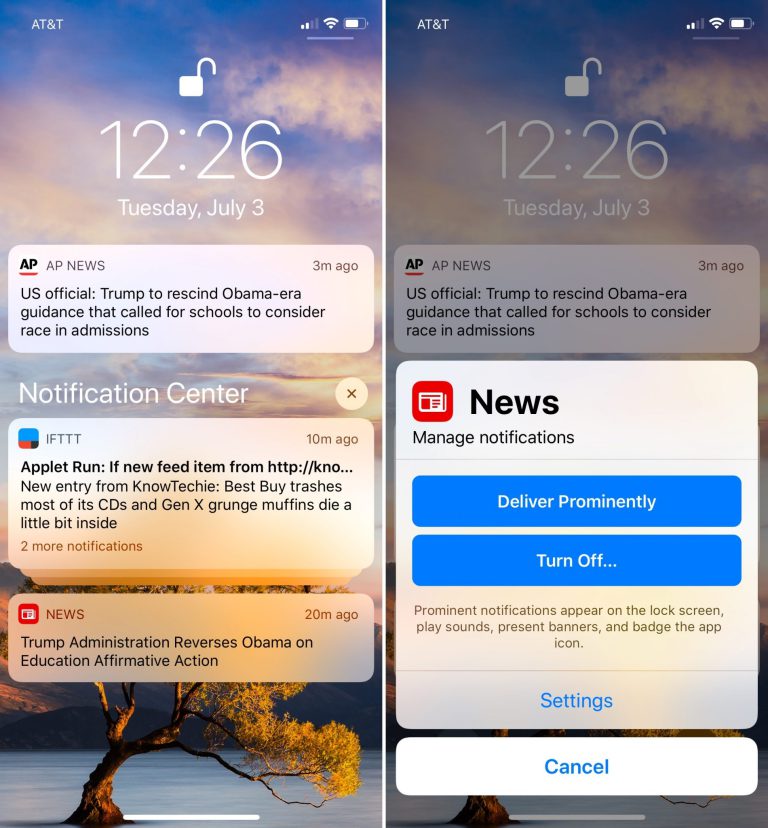
Getting tons of notifications on the iPhone is not always convenient - especially when you can not mute the sound. Luckily, in iOS 12, Apple has added a new Deliver Quietly feature  , which will no longer permanently distract you.

Monitor your notifications

If earlier the user could choose only between turning on and off notifications, then in Deliver Quietly, presented in iOS 12, appeared the third option. With it, you can limit the display of notifications to the Notification Center - they will not be displayed on the lock screen. This tool also removes all banners and sounds so you do not get distracted from important things.
Interestingly, this function is on the Notifications section in the settings, which would be logical to assume. You can access it either from the lock screen or from the Notification Center.

Silent notification delivery

  1. Open the Notification Center (swipe from the top of the screen)
  2. On any available notification, make the snipe from right to left and among the available options, select Manage
  3. In the context menu that appears, click Silent Deliver Quotes (Deliver Quietly)
  4. Repeat steps 2-3 for notifications from all other applications
Done! Now you will not receive banners and sound alerts from selected applications.

Turn off notifications

Also you can completely turn off notifications from any application. To do this, repeat steps 1-2 from the previous step, but on the shortcut menu, click Disable . You will be asked if you really want to do this - select Disable all notifications .
Repeat these steps for all applications from which you do not want to receive notifications even in silent mode.

Canceling silent delivery

To return to the screen the blocking of notifications that you made quiet, you need to find a notification from the desired application, make a svayp to the left, click Manage and select the usual message delivery mode. 

Returning notifications

If you have completely disabled notifications, and now want to return them, go to Settings > Notifications . In the list of applications, select the one you want and activate notifications.